bridge4simulator
by AppGram·★ 81·综合分 45
控制 iOS 模拟器的 MCP 服务器,提供丰富的自动化工具用于测试和开发。
概述
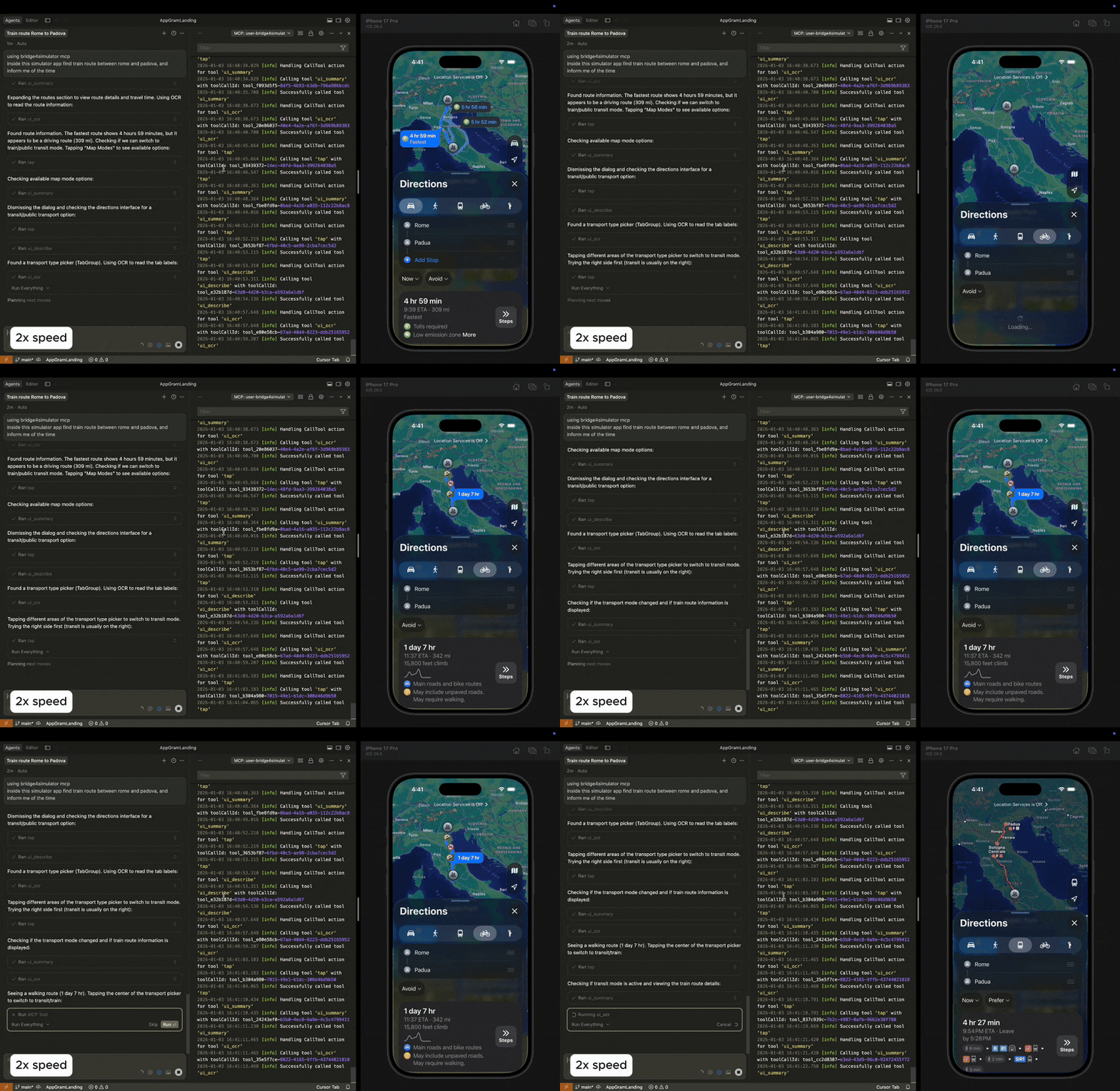
bridge4simulator 是一个 MCP 服务器,通过 21 种不同工具使 AI 助手能够控制 iOS 模拟器。它提供设备管理、输入模拟、屏幕捕获、应用控制、导航、具有 OCR 功能的 UI 分析以及宏自动化功能。该服务器无缝集成到 Claude Desktop、Cursor 和 Claude Code 等流行 AI 客户端中,使其成为自动化 iOS 测试和应用程序开发工作流程的强大工具。
试试问 AI
装完之后,这里有 3 个你可以让 AI 做的事:
什么时候选它
当您需要AI驱动的iOS应用测试、自动化或UI交互功能,且已经在Apple生态系统中工作时,选择此服务器。
什么时候不要选它
不适合非Apple环境,或者您需要在物理iOS设备而非模拟器上进行设备测试时。
此 server 暴露的工具
从 README 抽取出 12 个工具device_listList available simulator devices
device_bootBoot a simulator device
device_shutdownShutdown a simulator device
statusCheck simulator device status
tapSimulate a tap gesture on the screen
swipeSimulate a swipe gesture on the screen
type_textType text into the simulator
screenshotTake a screenshot of the simulator
app_launchLaunch an application in the simulator
app_terminateTerminate a running application
ui_describeDescribe the current UI elements on screen
ui_ocrPerform OCR on the current screen
可对比工具
安装
安装
使用 Homebrew
brew tap AppGram/tap
brew install bridge4simulator
使用安装脚本
curl -fsSL https://github.com/AppGram/bridge4simulator/releases/latest/download/install.sh | bash配置
Claude Desktop
添加到 Claude Desktop 配置文件:
{
  "mcpServers": {
    "bridge4simulator": {
      "command": "/usr/local/bin/bridge4simulator",
      "args": ["mcp", "--enable-tools=screenshot"]
    }
  }
}
Cursor/Claude Code
添加到设置中:
{
  "mcpServers": {
    "ios-simulator": {
      "command": "/usr/local/bin/bridge4simulator",
      "args": ["mcp", "--enable-tools=screenshot"]
    }
  }
}
bridge4simulator 对比
最后更新于 · 由 README + GitHub 公开数据自动生成。